
In the world of Roblox’s Blade Ball, emoting isn’t just about showing off; it’s a strategic but risky move that can add an element of surprise and fun to your gameplay. Whether you’re looking to taunt your opponents or celebrate a win, knowing how to emote is a good thing to know.
In this guide, we’ll walk you through the steps to emote in Blade Ball.
Roblox Blade Ball – How to Emote
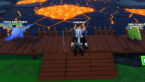
Emoting in Roblox Blade Ball varies depending on the device or controller you’re using. Here’s a breakdown:
- Xbox Controller: If you’re playing Blade Ball using an Xbox Controller, emoting is a breeze. Simply press the L1 (Left Bumper) button, and your character will start showing off their dance moves.
- PC (Mouse and Keyboard): For those playing on a PC using a mouse and keyboard, the R key is your go-to for emoting. Just press it, and watch your character break into a dance.
- Mobile: Unfortunately, mobile players currently don’t have the option to emote in Blade Ball. Hopefully, this feature might be added in future updates.
Related: How to Get Coins in Blade Ball
Emoting can be fun, but it’s essential to be aware of your surroundings. Avoid emoting during high-speed ball moments. I’ve learned the hard way that while you can cancel an emote by pressing F, it might not always deflect the ball, leaving you vulnerable.
Can You Choose the Emote You Use in Blade Ball?
In Blade Ball, you can’t choose a specific emote. Every time you press the emote button, your character will perform a random dance. If you have a favorite dance in mind, keep pressing the emote button until you get the one you want. It adds an element of unpredictability and fun to the game. But as always, be prepared that if you emote, you’re probably going to die fast!




Comments