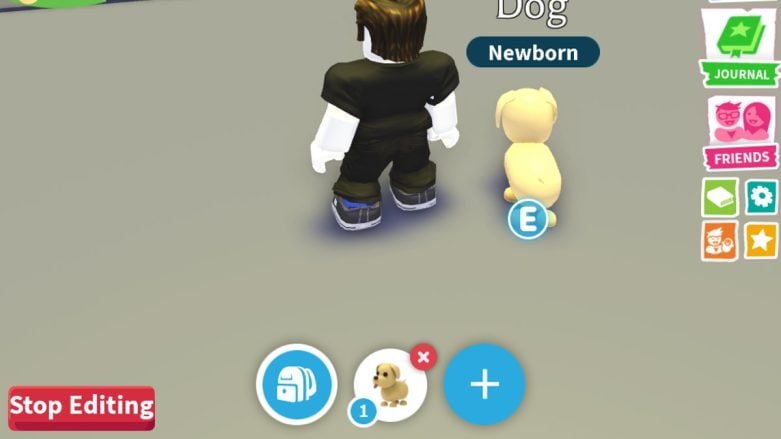
The developers of Adopt Me have added a Hotbar to help players find their favorite pets, vehicles, or toys. The Hotbar keeps your favorite things in a special, easy-to-reach place so you can play the game more smoothly. This guide will show you how to use and customize it.
If you want free items, visit our Adopt Me codes page. You should also check out our guides on How To Adjust & Edit Pet Display Banner, How To Find & Customize Profiles, recolor vehicles, and all eggs and how to obtain them.
How To Customize And Open Hotbar In Adopt Me
Opening the Hotbar is really easy. Just find the gear icon on your screen and click on it. This will open the Adopt Me settings menu. In the settings menu, look for the button that says Edit Hotbar. Clicking this button will let you change your Hotbar.
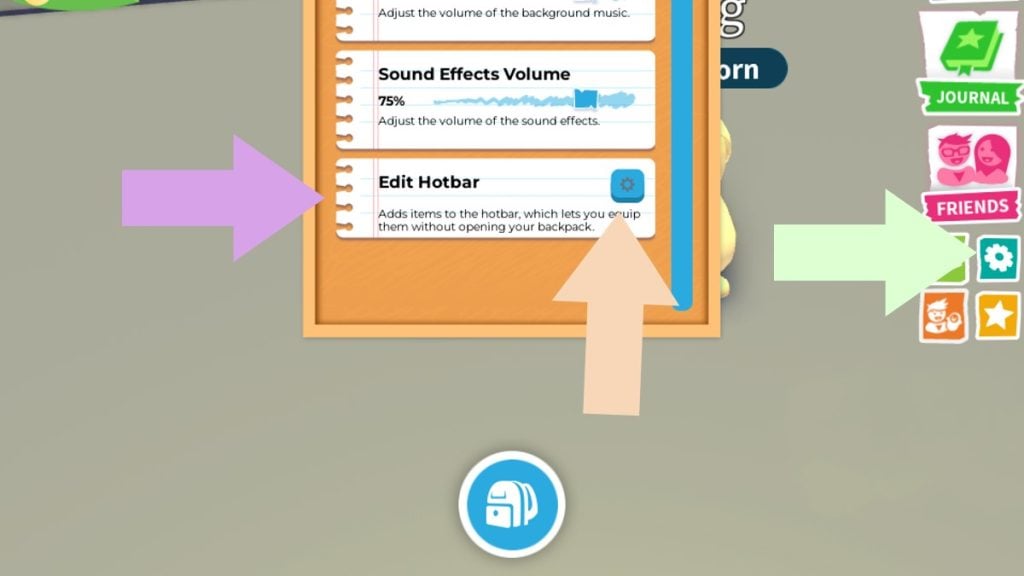
Once you open the Edit Hotbar menu, you’ll see your backpack icon with a plus button next to it. This plus button lets you put things in your Hotbar. Click on the plus button and look through your stuff. You can put in anything you want, like your favorite pets, cool vehicles, fun toys, or snacks you use a lot.
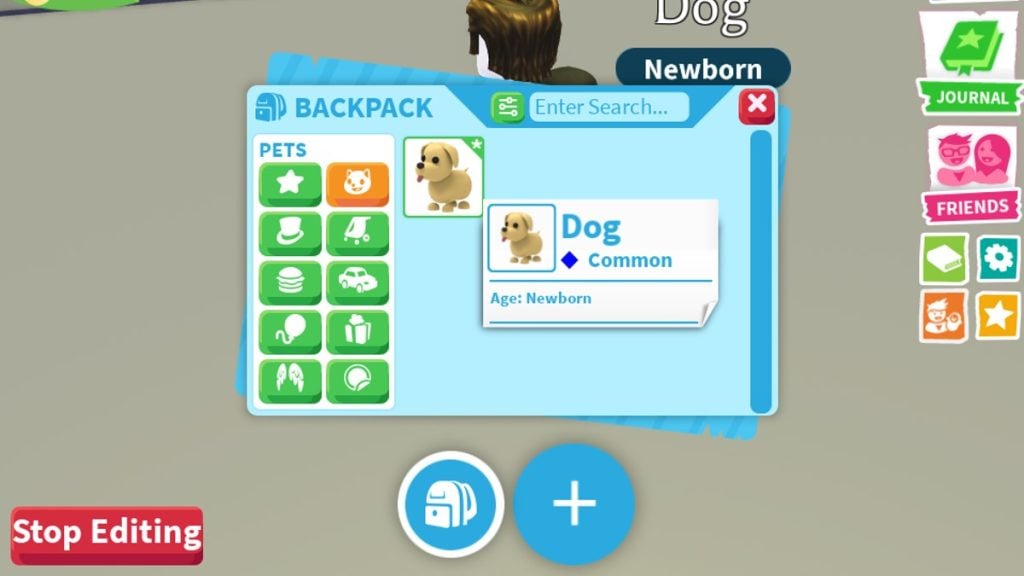
The amount of stuff you can keep on your Hotbar in Adopt Me depends on how long you’ve been playing. When you first start, you only have three slots, but as you play more, the Hotbar grows and can hold up to nine items.
There are two ways to use items from your Hotbar. On a PC, you can just press the number key that matches the slot where your wanted item is placed. For instance, if your favorite stroller is in the third slot of your Hotbar, pressing the 3 number key will equip it right away.
If you’re playing on a phone or tablet, it’s even easier. Just tap the icon of the thing you want to use in the Hotbar, and it will start working right away.
Don’t worry if you think the hotbar is making your screen messy. You can minimize it without losing the ability to use it. There is a small arrow above the hotbar. Click on it, and the hotbar will minimize, disappearing until you want it again.




Comments