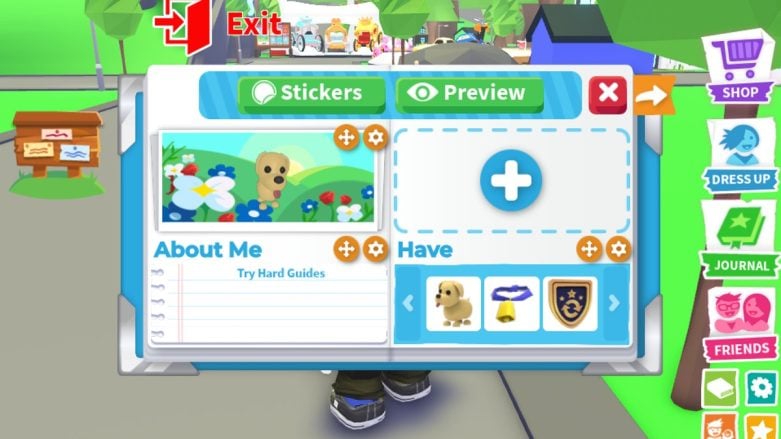
A recently added new feature to Adopt Me lets you adjust and display your pet against a fun background. This means you can show off your favorite pet to anyone who checks out your profile. We’ll walk you through how to do it.
If you want boosts and free items, visit our Adopt Me codes page. You should also check out our guides on How To Open And Use Hotbar, How To Favorite Trades, and all eggs and how to obtain them.
Adopt Me – How To Adjust & Edit Pet Display Banner
Click on your character on the main screen. Then, choose Profile (or press 1 on your keyboard). On your profile, look for empty category boxes. These have plus buttons in the middle. If all the boxes are full, you can click the settings cog (gear icon) above any box. This will allow you to delete a current display using the trash can icon. Once you have an empty box, click the plus button (+) next to it. A menu might appear where you can choose “Display.” This will open the display customization menu for your pet. Here, you can select a pet from your inventory to be featured on the banner.

Additionally, you can change the background behind your pet. Just use the arrow keys to go through different background options:
- Flowers
- Fire
- Haunted cemetery
- Asteroid among shooting stars
- Firefly in jars
- Pond
- Red dots in white background
- Forest in snow
- Night sky with stars
- Lighthouse near beach
- Log cabin with fire place
- Forest in autumn
- Close up of roses in garden
- Antarctica
- Spooky forest
- Shooting stars above field
- Log cabin with lights
- Ocean floor
- Solid colored background
For a plain-colored background, click the settings gear again and select a color from a color picker. This will change the whole background to a different color. Remember, only one pet can be shown on the banner, and the size of the banner can’t be changed.
With this cool new feature, you can make your profile special and showcase your favorite pets. Try out different pets and backgrounds to create a one-of-a-kind display that shows who you are and what you like!



Comments