Have you ever wanted to easily go back to your best trades or remember that awesome deal you made without heading to the Safety Hub? Well, Adopt Me recently added a new thing that lets you mark your favorite past trades for quick reference. Other players can also see this. This guide will show you the easy steps to use this cool new feature.
If you want free items and boosts, visit our Adopt Me codes page. You should also check out our guides on How To Adjust & Edit Pet Display Banner, How To Skip Open Sticker Pack, and all eggs and how to obtain them.
Adopt Me – How To Display Favorite Trades
First, you need to access your in-game Profile. Click on your character, and a menu will appear. Find the option called Profile, or just press the number 1 on your keyboard.

To use the favorite trading feature, you need an empty category space. If all your spaces are full, don’t worry! Just find the small settings gear above any group. Clicking this gear shows a trash can icon. Click the trash can next to the group you want to remove, making an empty space.
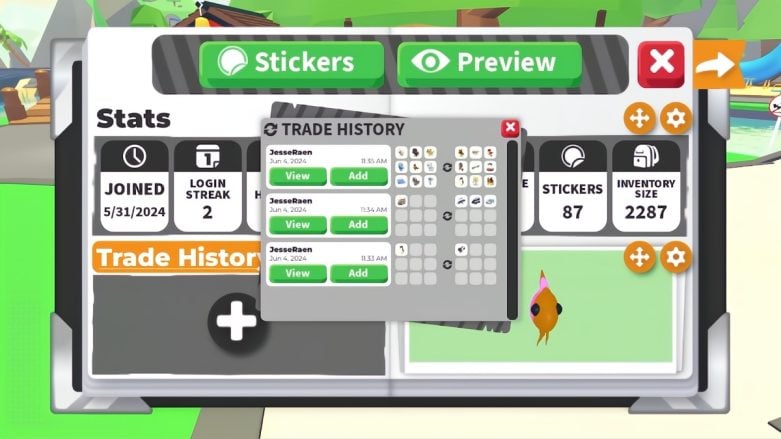
Once you have an empty category slot, look for the plus button (+) in the space. Clicking this button will present you with a list of options. Find the option labeled Trade History and click on it. This action replaces the empty category with your past trade history.

You’ll notice a big plus button when you look at your trade history. If you click this button, you can choose the trades you want to mark as favorites. Each previous trade will show information like when it happened, who you traded with, and what items were exchanged.
Favorited trades will be easy to find in your profile. This lets you quickly go back to deals you thought were really successful, use them as examples for future negotiations, or just show off how good your deals have been to other players. It’s a useful tool for keeping track of your trading journey and remembering the great trades you made.




Comments